AI assistants (MCP)
Connect Claude or ChatGPT to your finances
Connect your AI assistant to the app and look up your transactions, budgets or bills in plain language. You choose what data it can see and what it can change; nothing is saved without your confirmation and every change is recorded in the history.
AI assistants
What are the app's AI assistants?
A secure connector between your favourite AI assistant and your subscription's data.
The app includes an MCP server (Model Context Protocol, the open standard that assistants use to connect to other apps). Once you add it to Claude, ChatGPT or Claude Code, the assistant can look up your data to answer questions such as “How much did I spend on restaurants this quarter?” or “Which electricity bill was the most expensive?”.
It can also make changes for you: record transactions, create categories, import a statement or a table you give it… It always shows you a preview of what it is going to do first and saves nothing until you confirm.
Related guide: How to use AI with your finances
Benefits
What can you do with a connected assistant?
All the power of AI on your own data, with the same rules as the app.
-
Questions in plain language
Ask about balances, spending by category, budgets, loans, net worth, bills and subscriptions, payslips or shared expenses and get answers with your real figures.
-
Preview and confirmation
Before saving, the assistant shows you what it is going to create, change or delete. You have 10 minutes to confirm; if someone changes that data in the meantime, nothing is saved.
-
Import any document from the conversation
Give it a CSV, an Excel file, a PDF or even a screenshot or a photo of a receipt: the assistant reads the data and prepares the import of transactions, electricity and gas bills, payslips, budgets, loans or expense groups, without duplicating what you already have.
-
History of every change
Every change, whether made in the app or by the AI, is recorded in the item's history: who, when, from where (with the assistant's name) and what changed. It is kept for 2 years.
Step by step
How do I connect an assistant?
Set the permissions and add the server to your assistant in 4 steps.
-
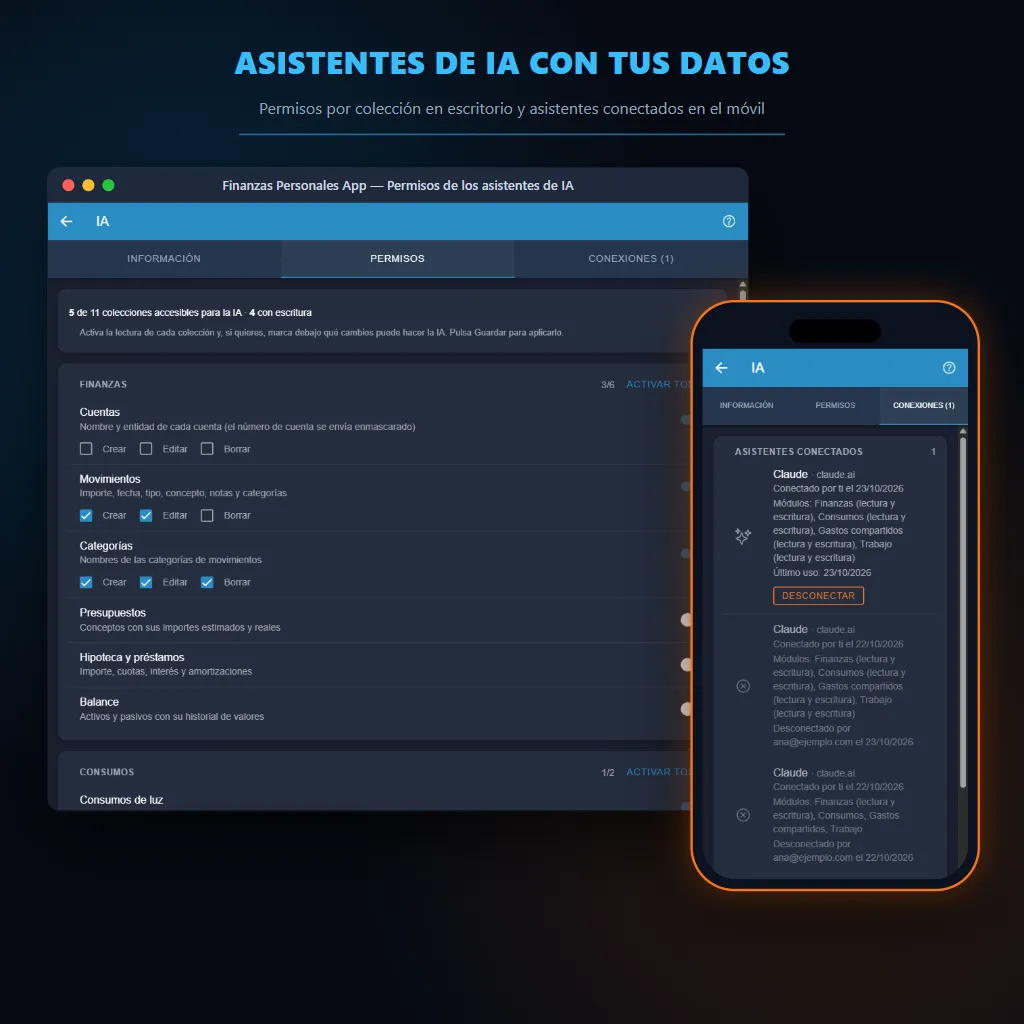
Turn on permissions on the AI screen
In the Permissions tab, switch on read access for the collections you want to share and, if you wish, tick
Create,EditorDelete. Tap Save. -
Add the server to your assistant
Copy the server address from the Information tab. In Claude, add it under Settings → Connectors; in ChatGPT (paid plan, developer mode), under Settings → Apps; in Claude Code, with
claude mcp add. -
Sign in and choose what to grant
The app's page opens: sign in with your account (or create one right there), choose the subscription and review which collections the assistant can read and what changes it can make. Tap Allow access.
-
Ask, review and confirm
Ask your questions in the chat. When you ask for a change, review the preview and confirm it. The connection appears in the Connections tab, where you can disconnect it.
Frequently asked questions
AI assistant FAQs
Everything you need to know before connecting your assistant.
Which AI assistants can I connect?
Any assistant that supports remote MCP servers with OAuth. The app's AI screen includes instructions for Claude (web, desktop and mobile), Claude Code and ChatGPT, which needs a paid plan with developer mode.
Can the AI see all my data?
No. By default it sees nothing: it can only access the collections switched on in the AI screen (or when you connect it), and only from modules enabled in the subscription. Account numbers are sent masked and payslip PDFs are never sent. Your data only reaches the provider of the assistant you connect, when you ask it something.
Can the AI change or delete my data without me noticing?
No. Writing requires explicitly enabling Create, Edit or Delete on the collection. Each change is first prepared as a preview and only saved when you confirm it. There are also records the AI never deletes (an account with transactions, a category in use or a payslip with its PDF), and everything is recorded in the history with AI as the source.
What documents can the assistant import?
Any it can read: a CSV or Excel file, a bank statement as a PDF, a screenshot or a photo of a receipt or a bill. The assistant extracts the data and prepares the import of transactions, electricity and gas bills, payslips, budgets, loans, accounts, categories or expense groups, if you have allowed it to create records in that collection. Before saving it shows you a preview: check it, especially if it comes from a photo, because it may misread a figure or a date. The file you give it is received by the assistant's provider with everything it contains, not by Finanzona: cover anything that isn't needed, such as your full account number.
What limits does an assistant have?
At most 100 transactions per query, over periods of up to 366 days (for more, ask for several pages), a maximum number of queries per minute and per day, and 500 changes or import rows per confirmation. You have 10 minutes to confirm what it prepares. Nor can it create records once the subscription has reached its storage limit (1 GB): the assistant can tell you how much is left, as can Subscription details.
How do I disconnect an assistant?
In the Connections tab of the AI screen, tap Disconnect: it stops working in less than a minute. It is also disconnected automatically if its user leaves the subscription. Switching off a collection or a module also cuts its access in open connections.
How much does it cost?
Connecting your assistant to the app costs nothing. You only need an account with the assistant of your choice; for ChatGPT, a paid plan that allows developer mode.
All in one app
More from Finanzona
Ready to talk to your finances?
Create your account, switch on what you want to share on the AI screen and connect Claude or ChatGPT in a couple of minutes.
Want to see it first? Try the demo without creating an account · How it works